WordPress to Webflow Migration: A Step-by-Step Guide
Category:: CMS


Most people who ask us about a WordPress to Webflow migration are not unhappy with WordPress itself. They are just tired of it. Tired of plugin updates that break the contact form, page builders that turn a two-minute edit into a support ticket, and hosting bills that quietly creep up every year.
Webflow fixed a lot of that. But we have also seen migrations go badly, with sites losing a big chunk of their organic traffic because nobody set up the redirects. So, this is not a theory piece. But it is the process we follow at ThemeMakker, including the boring parts that keep your rankings safe.
Is Webflow Actually the Right Move?
Short answer: it depends on “what your site does”. Webflow is brilliant for marketing sites and blogs. It is a poor fit for a few things WordPress does well. Here is how the two compare in practice.
| Factor | WordPress | Webflow |
|---|---|---|
| Design control | Depends on theme and page builder | Visual, pixel-level control built in |
| Content editing | Flexible, but builders can get messy | Clean editor for marketing teams |
| Plugins and extensions | Tens of thousands of plugins | Smaller app marketplace and integrations |
| Hosting and security | Self-managed or managed host, plus updates | Hosting, SSL and updates included |
| CMS scale | Practically unlimited posts | Item and Collection limits set by plan |
| eCommerce | WooCommerce, very extensive | Webflow Ecommerce, simpler and lighter |
| Code ownership | Full access to PHP and database | Exportable front-end code, CMS stays on Webflow |
| Cost model | Low software cost, variable maintenance | Predictable monthly plan per site |
Go with Webflow if your site is mostly marketing pages and a blog, your team wants to edit content without calling a developer, and you would be happy never to update a plugin again.
Stay on WordPress if you rely on WooCommerce, memberships, digital stores (like ThemeMakker) or an LMS, publish thousands of posts, or need custom server-side logic. We have talked clients out of migrating for exactly these reasons. Moving a site like that usually costs more than it saves, and that is not something you want to find out six months and one large invoice later.
Do This Before You Touch Webflow
When a migration goes wrong, it usually went wrong here. Teams jump straight into the Designer, start building, and only later realize they never wrote down what the old site had. Give this a full day. It’s the least exciting part of the project and the most important one.
How the Migration Actually Works
We split every migration into 4 phases. The important bit: your WordPress site keeps running, untouched, until the very last step. Your visitors will never see a half-finished site. And that is why this migration plan works significantly well.

WordPress to Webflow migration · 4 phases, 10 steps
Step 1: Decide where everything is going
Before exporting anything, sketch out how WordPress content maps to Webflow Collections. Blog posts, authors, categories and case studies are the usual ones, linked together with reference fields. And keep URL slugs the same wherever you can. Every URL you do not change is one less redirect you need to worry about.
Step 2: Exporting your content
WordPress offers an XML export tool under Tools > Export. Webflow requires CSV, so you must either run that XML through a converter or use a plugin like Exporter for Webflow which gives you a CSV Webflow can read straight away. We would prefer later option.
Step 3: Clean up the CSV (do not rush this one)
Honestly, this is where most of your time will go. Open the file and check that slugs match the old URLs, dates are consistent, and featured image columns hold full image URLs. Then hunt for leftover page-builder shortcodes like [vc_row] or [et_pb_section]. Webflow has no idea what they are, so it just prints them as text in the middle of the posts.
Step 4: Import into Webflow
Create Collections and fields in the Designer, then import the CSV and map each column to a field. Rule is simple here: import ten posts first and look at them properly. Fix whatever is not proper, then bring in the rest. Fixing ten posts is a lot nicer than fixing five hundred.
Step 5: Rebuild the design
This is the part people do not expect. Your WordPress theme does not come with you, so the front end will need rebuilt from scratch. We start with global styles, fonts and reusable components, then build the static pages and the template that displays each blog post. The upside? It is your chance to fix all the design problems you’ve been living with for years.
Step 6: Bring images over properly
Make sure every image is hosted in Webflow. If any still point at your old WordPress server, they would all break the day you cancel that hosting. Logos, icons, PDFs and downloads usually need to go into the Assets panel by hand.
Step 7: Reconnect forms and tracking
Rebuild your contact forms with Webflow Forms or whichever form tool available to use, and check that submissions still land in your CRM and/or inbox. Add analytical tools, tag manager, pixels and chat scripts back through site-wide custom code. Then submit a test lead. Seriously, test it before you lose any real leads.
Step 8: Set up 301 redirects
Any old URL that changes needs a 301 redirect to its closest new page. Webflow lets you add redirects in site settings and can be uploaded them in bulk from a CSV. Remember that spreadsheet from the audit? This is what it was for.
Step 9: Test it on staging
Webflow offers a free staging subdomain to test before connecting to real domain. Use it, click through every page on a laptop and a phone, submit every form, and run a crawler over it to catch broken links and missing meta titles.
Step 10: Go live
Point website domain at Webflow, update DNS and hit publish. Then leave WordPress where it is for a few weeks. If you need to recover something you missed, you will be very glad it is still there.
How to Keep Your Google Rankings
Rankings usually drop after a migration for one of three reasons: broken URLs, missing metadata, or content that got cut during the redesign. Everything below deals with one of those.
- Redirect URLs one to one. Send each old page to its closest match. Do not dump everything on the homepage. Else, Google will treat that like a missing page anyway.
- Bring titles and meta descriptions. Export them from Yoast or Rank Math and map them to SEO fields in Webflow. Bind the blog template to those fields so every post keeps its own.
- Do not trim copy on pages that rank. A redesign makes it tempt, but those words are the reason for page rank.
- Add schema back. If your SEO plugin was generating structured data, you will need to add it as custom code on the page or template.
- Set Open Graph images so links still look right when someone shares them on LinkedIn or WhatsApp (Or any other social media).
- Submit the new sitemap. Webflow generates one by itself. Switch it on and submit it in Search Console on launch day.
- Keep an eye on things for a month or so. A small dip in the first week or two is normal. If one page keeps sliding, it is almost always a missing redirect or missing content.
Most common mistakes
- No URL audit. No list of old URLs means no complete redirect map. As simple as that.
- Picking a plan before counting posts. Hit the CMS limit mid-import and you will need to either upgrade in a hurry or delete content. Both will have huge impact on SEO.
- Importing everything in one go. One bad column mapping, multiplied by five hundred posts.
- Images left on the old server. Fine on launch day. Broken the day the WordPress hosting will be cancelled.
- Forgetting forms and tracking. Usually spotted weeks later, when someone asks why the leads have dried up.
- Switching WordPress off on launch day. Keep it as a safety net until the new site is stable and indexed.
Frequently Asked Questions
-
Q:: How long does it take?
A:: For a typical marketing site with a blog, a few weeks. Bigger sites with lots of content types or custom features take longer, mostly because of the design rebuild and the content cleanup. To find out the actual time will take, contact info@thememakker.com and get it analyzed by developers for accurate timeline.
-
Q:: Will I lose my rankings?
A:: Not if you handle the redirects, keep your metadata and content, and submit the new sitemap. Expect a bit of movement for a week or two, then things settle down.
-
Q:: Can I bring my WordPress theme over?
A:: No. Webflow does not use WordPress themes, so the design gets rebuilt. Your content can be imported. Your design cannot.
-
Q:: What about my WooCommerce store?
A:: Products can move to Webflow Ecommerce. But, if the store depends on subscriptions, lots of plugins or complex product variants, we will usually tell you to stay where you are.
-
Q:: What happens to my plugins?
A:: Each one gets replaced by a Webflow feature, an app, a bit of custom code, or nothing at all. Caching and security plugins, for example, just are not needed anymore because Webflow takes care of hosting very well.
-
Q:: Do I get to keep my domain?
A:: Yes. You just update your DNS records to point at Webflow when you launch.
Before You Decide
Moving to Webflow is as much a content and SEO job as a design job. Audit first, import in small batches, redirect every URL that changes, and keep WordPress around until you’re sure everything works.
Thinking about making the switch?
We build on both WordPress and Webflow , so we have got no reason to push you either way. Tell us about your site and we will give you a straight answer on whether it’s worth moving. If it is, we will handle the whole migration for you.
Contact info@thememakker.com to discuss your migration.
Recommended Posts
97.9%
Projects Delivered On-Time

5,000+
Creatives & Agencies Trust Us.

Development Service?
We can provide at affordable price.


Awwwards, Design Nominees, CSSLight, Best CSS and more





THEMEFOREST
Exclusive Author
Modern Admin Dashboard Templates for Developers & Businesses
Discover professionally designed admin dashboard templates for modern web applications. Our responsive dashboards are built with Bootstrap, React, Vue.js, Angular, Tailwind CSS, Laravel, Next.js, Node.js, ASP.NET, WordPress, WebFlow, and HTML.


Feature themes
Boost your customer interactions with Templates that spark growth.
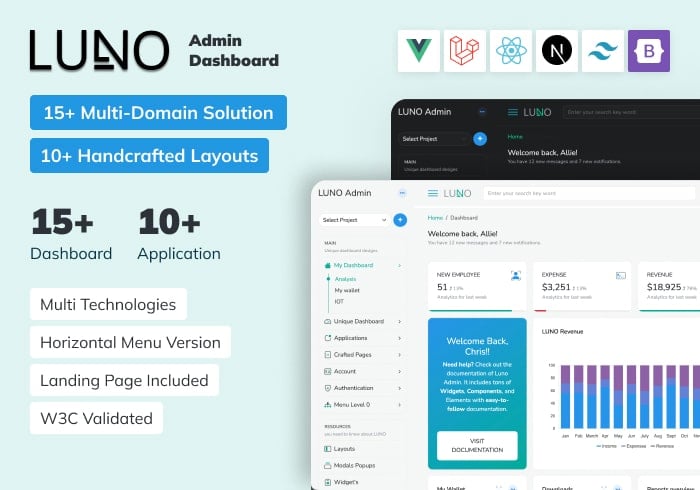
Luno – React, Vue, Laravel, Tailwind, Nextjs Admin Dashboard Template
ReactJs, Vue.js, Laravel, Bootstrap, Tailwind, NextJs
$19.00

ALUI | Bootstrap 5, ReactJS, Angular, VueJS, Laravel Admin Template
ReactJS, Angular, Vue.js, Laravel, Bootstrap
$19.00